






Description
(soloBizOS) - Artificial Intelligence has transformed the way videos are created, allowing anyone to generate stunning visual content with tools such as Google Veo, Sora, Runway, Kling AI, and Pika. However, the quality of the final video depends heavily on one crucial factor: the prompt.
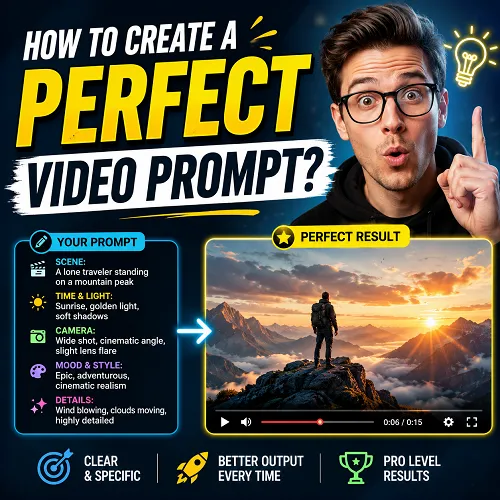
A well-crafted video prompt acts as a blueprint that tells the AI exactly what scene to create, how the camera should move, what emotions should be conveyed, and what visual style should be applied. Without clear instructions, even the most advanced AI video generator may produce results that fail to match your expectations.
In this guide, you'll learn how to create a perfect video prompt step by step. We will break down the essential components of an effective prompt, share proven frameworks used by professional creators, and provide practical examples you can immediately apply to generate cinematic, engaging, and highly realistic AI videos. Whether you're a content creator, marketer, entrepreneur, or filmmaker, mastering video prompting will help you save time, improve output quality, and unlock the full potential of AI-powered video generation.
ARTICLE CONTENT
+ How to show list of video prompts in soloBizOS.com?
+ How to create a new video prompt in soloBizOS.com?
DETAILED CONTENT
1. How to show list of video prompts in soloBizOS.com?
To do it, you click on AI Prompt Generator (1) menu => Then you click on Video Prompt (2) sub-menu => Then you can see list of video prompts like Illustration 01 bellows:
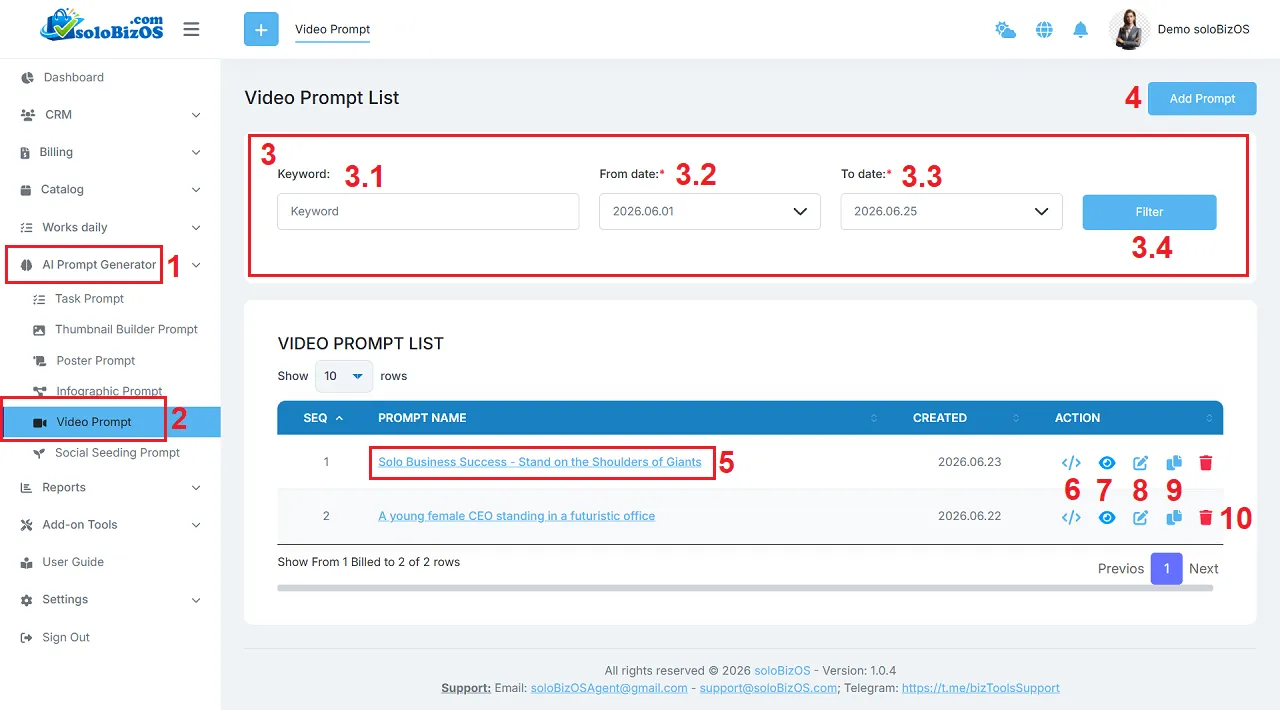
Illustration 01: List of Video Prompts
* Explain:+ 3rd area: It's used to filter data of list of video prompts.
+ Add prompt (4) button: You click on this button to create a new video prompt.
+ Prompt Name (5) and Eye Icon (7): You click on this to show the video prompt details.
+ Code Icon (6): You click on this icon to get its prompt.
+ Pencil icon (8): You click on this icon to modify its prompt.
+ Duplicate Icon (9): You click on this icon to duplicate that prompt.
+ Trash icon (10): You click on this icon to delete its prompt.
2. How to create a new video prompt in soloBizOS.com?
To do it, in list of video prompts like Illustration 01 above, you click on Add Prompt (4) button => In Video Builder Prompt form like Illustration 02 bellows, you need input or select the suitable values from the box in that form => then, you click on Prompt Generate (31) button to create Video Prompt.
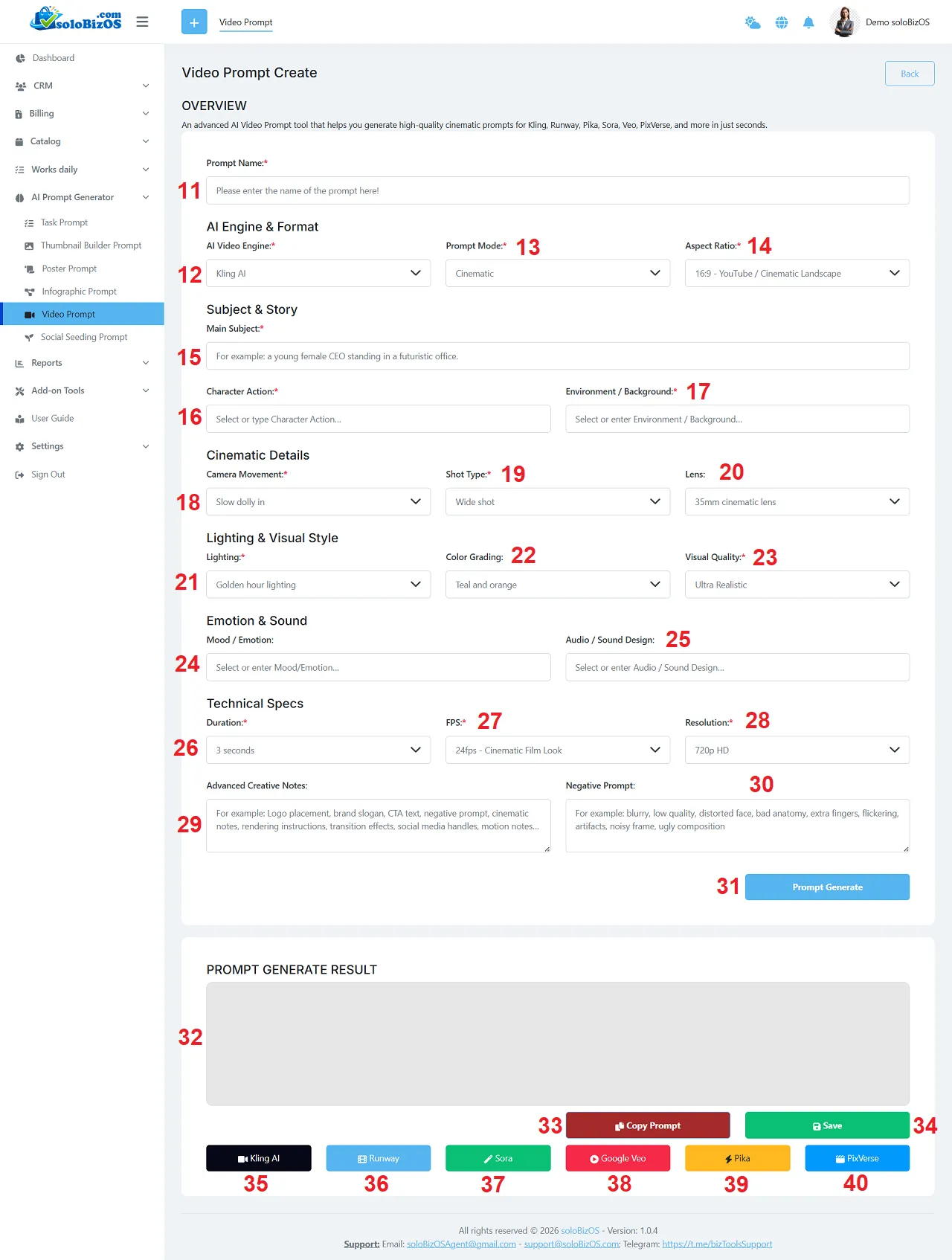
Illustration 02: The Interface of Video Builder Prompt Tool
+ 35th - 40th button: You click on there buttons to open the suitable AI assistant to paste your prompt there!
*For any questions, please contact us via Email: soloBizOSAgent@gmail.com Or support@soloBizOS.com Or Contact us via Form CONTACT for a prompt response.