



Description
(soloBizOS) - Running a solo business means wearing multiple hats every day. From managing customer relationships and finances to marketing and operations, you're responsible for every aspect of your business. One often-overlooked responsibility is password management.
As your business grows, so does the number of online accounts you need to access. Email platforms, payment gateways, CRM systems, cloud storage, social media accounts, domain registrars, and productivity tools all require secure login credentials. Poor password management can lead to security breaches, lost productivity, and even financial losses.
In this guide, you'll learn practical strategies to manage passwords effectively while keeping your solo business secure and organized.
1. Why Password Management Matters for Solo Businesses?
Unlike large companies with dedicated IT departments, solo entrepreneurs often manage passwords on their own. This increases the risk of:
- Reusing the same password across multiple accounts
- Forgetting important login credentials
- Writing passwords in insecure places
- Falling victim to phishing attacks
- Losing access to essential business services
A single compromised password can expose sensitive customer information, financial data, and business operations.
2. Common Password Management Mistakes
2.1. Using Weak Passwords
Simple passwords like "123456", "password", or your business name are extremely easy for attackers to guess.
Instead, create passwords that include:
- Uppercase letters
- Lowercase letters
- Numbers
- Special characters
- At least 16 characters
2.2. Reusing Passwords
Using one password for multiple accounts creates a domino effect. If one account is compromised, attackers can gain access to every other account using the same credentials.
Every business account should have its own unique password.
2.3. Storing Passwords in Plain Text
Avoid storing passwords in:
- Sticky notes
- Notebooks
- Unsecured spreadsheets
- Text files
- Messaging apps
These methods make sensitive information easy to steal or accidentally share.
2.4. Ignoring Two-Factor Authentication (2FA)
Whenever available, enable Two-Factor Authentication.
Even if someone discovers your password, they still cannot access your account without the second verification step.
Popular authentication methods include:
- Authenticator apps
- Security keys
- SMS verification (less secure but better than nothing)
3. Best Practices for Managing Business Passwords
3.1. Use a Password Manager
A password manager securely stores and encrypts all your credentials.
Benefits include:
- Auto-generated strong passwords
- Secure storage
- Autofill login forms
- Password synchronization across devices
- Easy password updates
3.2. Organize Passwords by Category
Keeping passwords organized saves time.
You can categorize accounts such as:
- Business Email
- Finance
- Marketing
- Social Media
- CRM
- Website
- Cloud Storage
- Development Tools
- AI Tools
- Productivity Apps
This structure makes account management much easier as your business expands.
3.3. Review Passwords Regularly
Every few months:
- Update critical passwords
- Remove unused accounts
- Check for compromised credentials
- Review access permissions
Routine maintenance greatly reduces security risks.
3.4. Keep Recovery Information Updated
Ensure every important account has:
- Updated recovery email
- Correct phone number
- Backup recovery codes
- Emergency recovery options
This prevents permanent account loss if you forget your password.
4. How to Create Strong Passwords?
A good password should be:
- Long
- Unique
- Random
- Difficult to guess
- Easy to store securely
Example:
❌ Summer2026
Better:
✅ F7!rQ9$Lm2#Px8@Zd5
Never use personal information such as birthdays, phone numbers, company names, or family members' names.
5. How to Share Passwords Securely?
Sometimes you need to share credentials with contractors or freelancers.
Avoid sending passwords through:
- Chat applications
- Screenshots
- Plain text documents
Instead:
- Use secure sharing features inside password managers.
- Grant temporary access whenever possible.
- Revoke access immediately after the project ends.
6. How to Manage Passwords with soloBizOS.com?
6.1. How to show list of passwords in soloBisOS.com?
Todo it, you need click on Works Daily (1) menu => next you click on Password Management (2) sub-menu => then you can see list of passwords like Illustration 01 bellows:
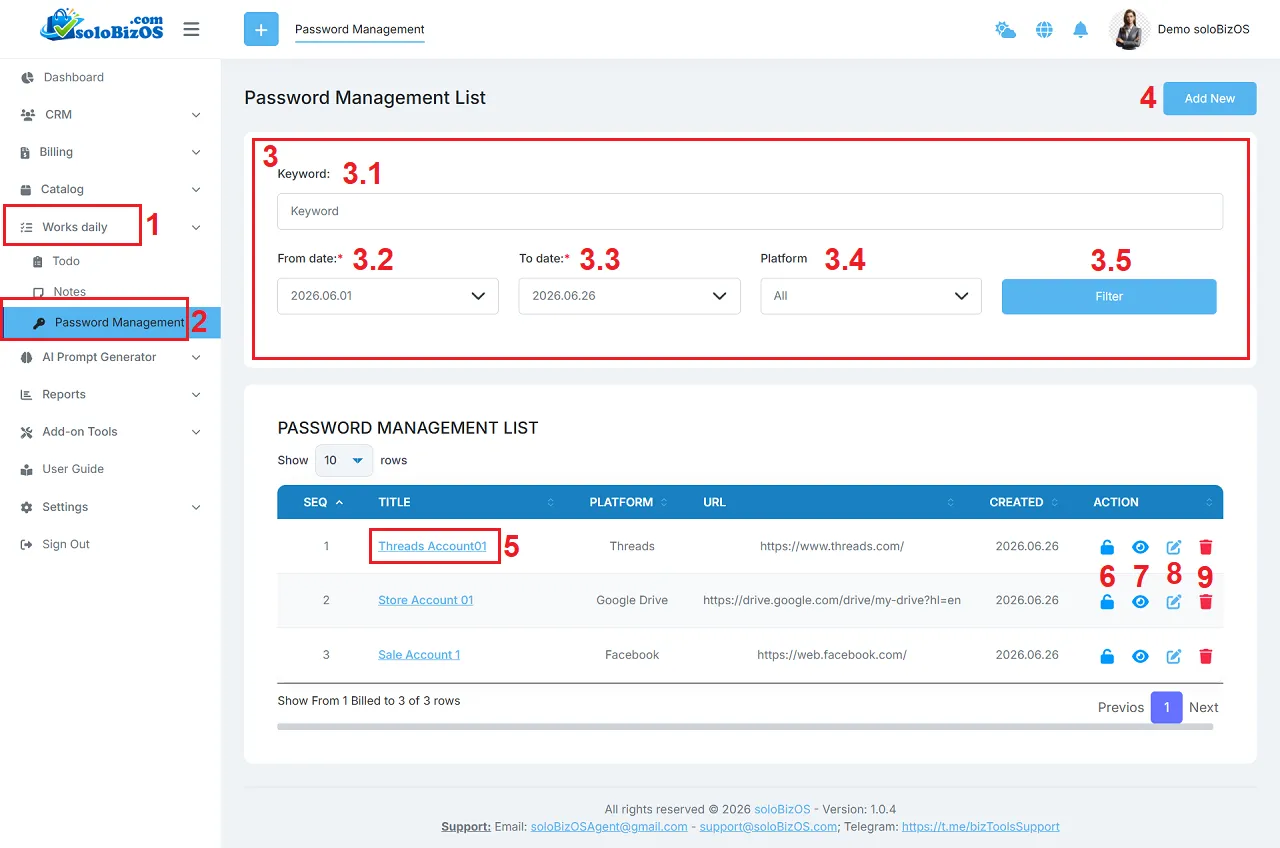
Illustration 01: List of Password
* Explanation:
+ 3rd Area: It's used to filter data about passwords.
+ Add New (4) button: You click on this button to create a new password.
+ Title (5) option or Eye icon (7): You click on this to show password details.
+ Lock (6) icon: You click on this icon to get its password.
+ Pencil icon (8): You click on this icon to modify that password.
+ Trush icon (9): You click on this icon to delete that password.
Note: Passwords are encrypted. You can only decrypt and retrieve the password after logging into soloBizOS.com and clicking the lock icon corresponding to the platform and account for which you need the password.
6.2. How to create a new Password in soloBizOS.com?
In Notes List like Illustration 01 above, you click on Add New (4) button => In Password Create form like Illustration 02 bellows, you need input all things for that form => Final, you click on SAVE (16) button to finish.
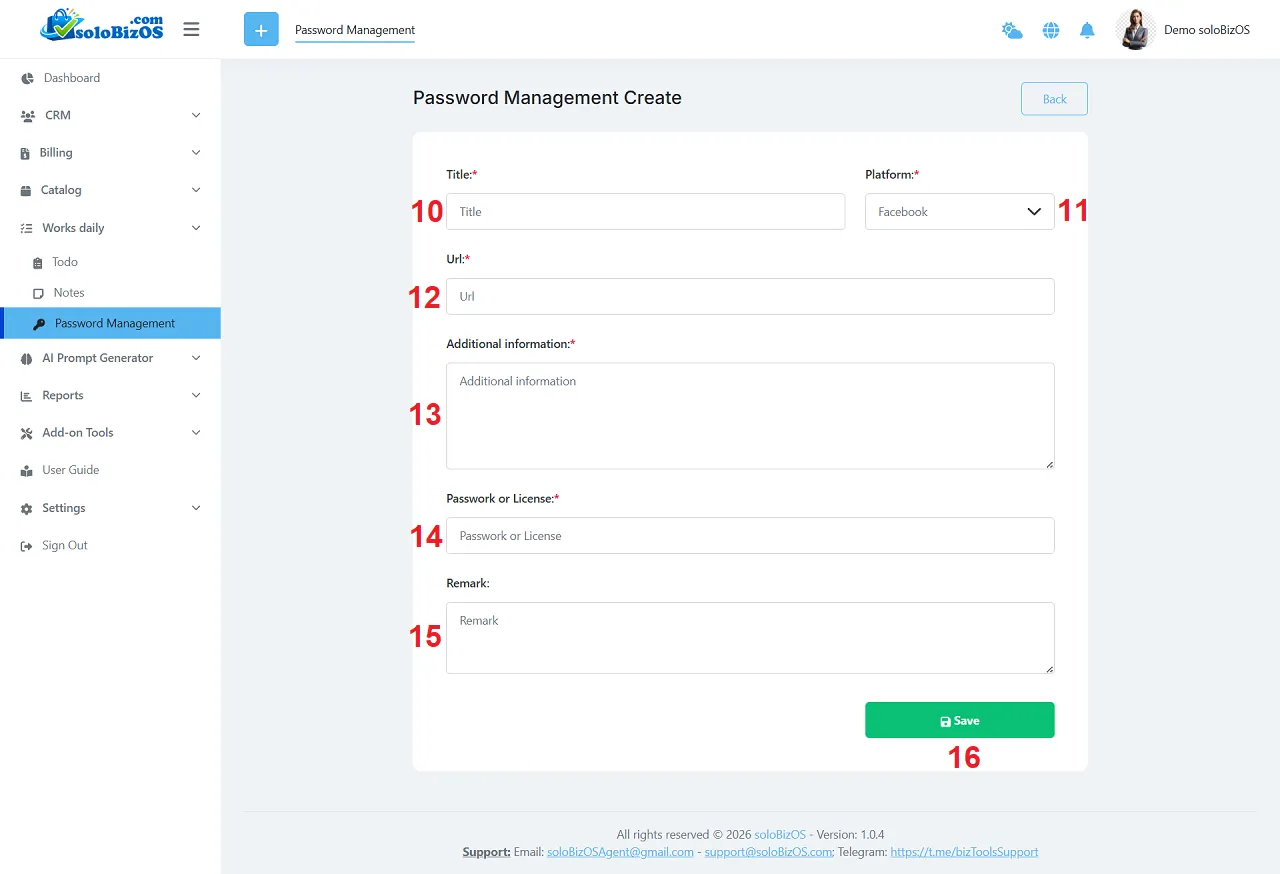
Illustration 02: Create a new password to manage
+ In the Additional information (13) box, enter the information related to the passwords you need to manage, such as: Account name, account role, who is responsible for managing the account, etc.
+ In the Passwork or License box (14): Enter the password or license of the application you want to store and encrypt here.
7. Additional Security Tips
Besides password management, consider these cybersecurity habits:
- Keep software updated.
- Enable automatic security updates.
- Monitor login activity regularly.
- Use antivirus protection.
- Back up important business data.
- Be cautious of phishing emails.
- Lock devices when unattended.
- Use secure Wi-Fi networks or VPNs when working remotely.
Small security habits can prevent costly incidents.
Conclusion
Effective password management is one of the simplest yet most important ways to protect a solo business. Strong, unique passwords, secure storage, two-factor authentication, and regular account reviews significantly reduce cybersecurity risks.
By building good password habits today, you'll save time, protect valuable business information, and gain peace of mind as your business grows. Whether you're managing ten accounts or hundreds, an organized password management strategy will keep your solo business secure, productive, and ready for future success.
*For any questions, please contact us via Email: soloBizOSAgent@gmail.com Or support@soloBizOS.com Or Contact us via Form CONTACT for a prompt response.