




Description
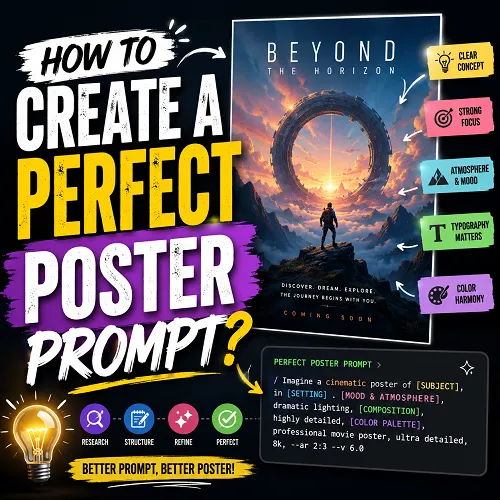
(soloBizOS) - Have you ever generated a poster with AI and felt disappointed by the result? The problem is rarely the AI itself, it’s usually the prompt. A well-crafted cinematic poster prompt can transform a simple idea into a breathtaking movie-style masterpiece filled with emotion, storytelling, dramatic lighting, and professional visual composition.
In today's AI-powered creative landscape, tools like ChatGPT, Midjourney, Leonardo AI, Flux, and Google AI Studio can produce stunning poster designs within seconds. However, achieving Hollywood-quality results requires more than typing a few descriptive words. You need a structured prompt that clearly defines the subject, atmosphere, composition, color palette, typography, visual style, and technical settings.
In this guide, you'll learn how to create the perfect cinematic poster prompt step by step. Whether you're a marketer, entrepreneur, content creator, designer, or AI enthusiast, you'll discover a proven framework that helps generate professional movie posters consistently. By the end of this article, you'll be able to craft powerful prompts that produce eye-catching, high-converting, and visually stunning poster designs every time.
ARTICLE CONTENT
+ How to show list of poster prompts in soloBizOS.com?
+ How to create a new poster prompt in soloBizOS.com?
+ Some actual poster images created by Prompt using the instructions in this article.
DETAILED CONTENT
1. How to show list of poster prompts in soloBizOS.com?
To do it, you click on AI Prompt Generator (1) menu => Then you click on Poster Prompt (2) sub-menu => Then you can see list of poster prompts like Illustration 01 bellows:
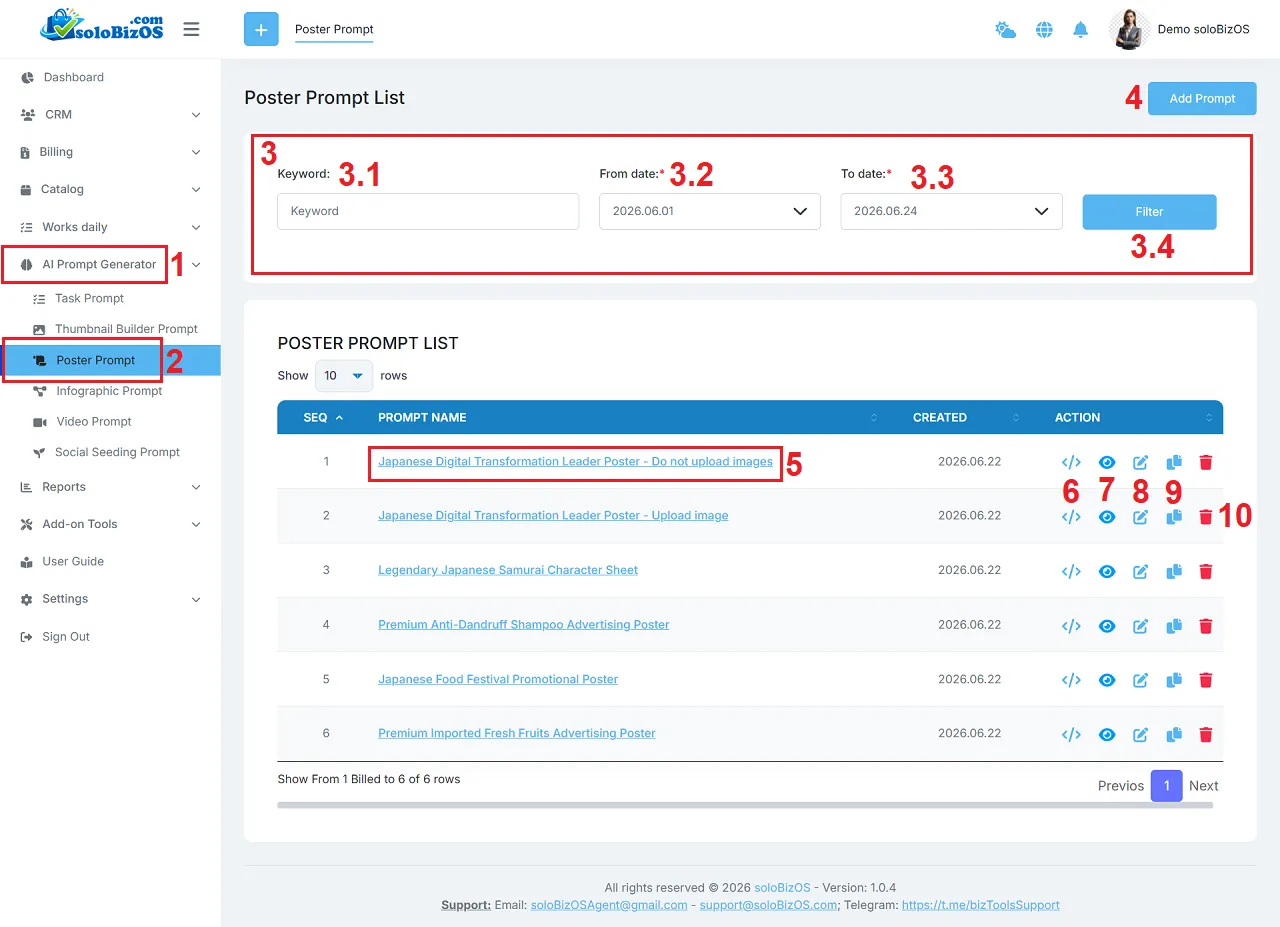
Illustration 01: List of Poster Prompts
* Explain:+ 3rd area: It's used to filter data of list of poster prompts.
+ Add prompt (4) button: You click on this button to create a new poster prompt.
+ Prompt Name (5) and Eye Icon (7): You click on this to show the poster prompt details.
+ Code Icon (6): You click on this icon to get its prompt.
+ Pencil icon (8): You click on this icon to modify its prompt.
+ Duplicate Icon (9): You click on this icon to duplicate that prompt.
+ Trash icon (10): You click on this icon to delete its prompt.
2. How to create a new poster prompt in soloBizOS.com?
To do it, in list of poster prompts like Illustration 01 above, you click on Add Prompt (4) button => In Poster Builder Prompt form like Illustration 02 bellows, you need input or select the suitable values from the box in that form => then, you click on Prompt Generate (32) button to create Poster Prompt.
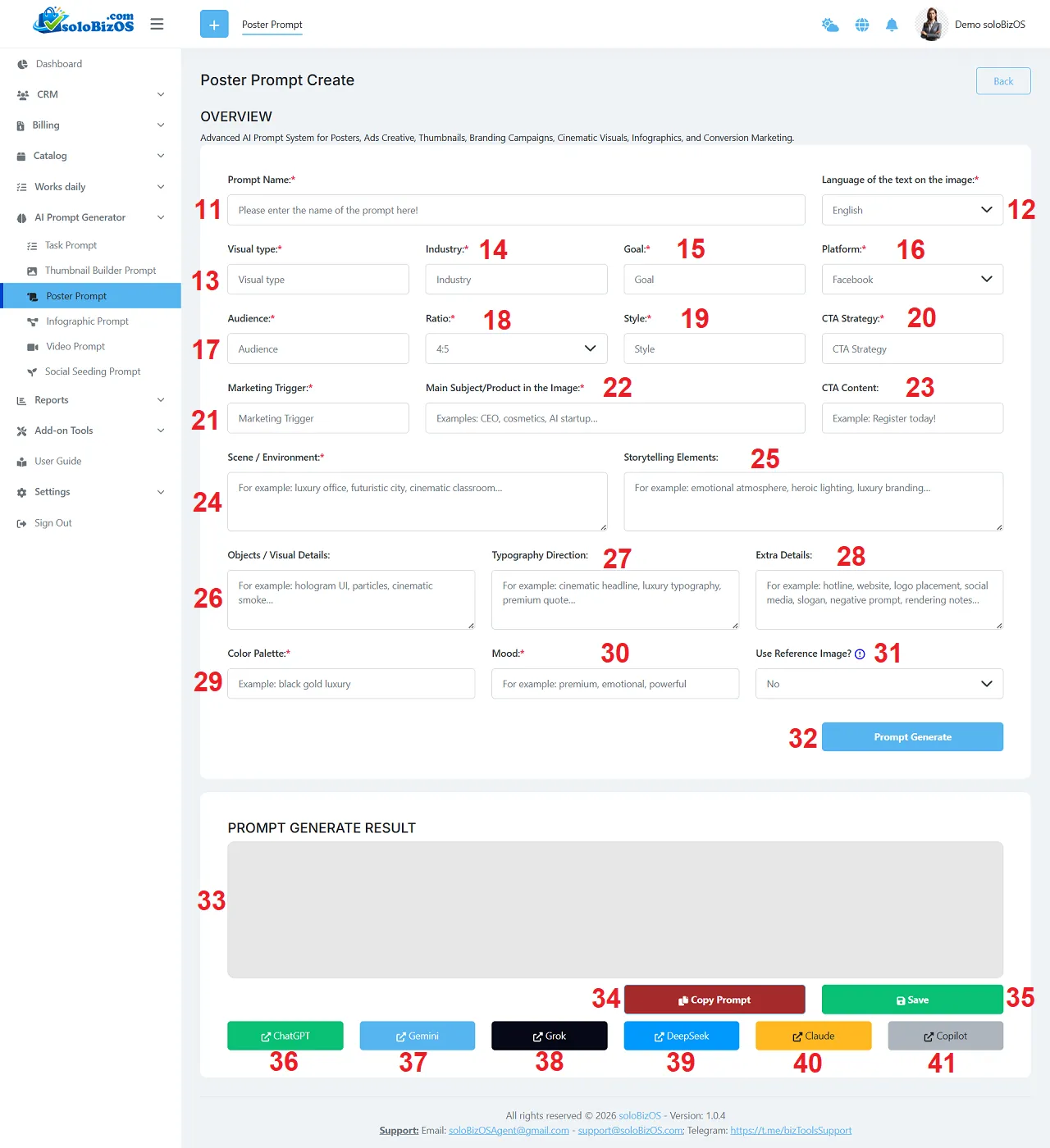
Illustration 02: The Interface of Poster Builder Prompt Tool
+ Platform (16) box: You need choose the suitable value with your platform that you want to create your Poster which's suitable with that platform.
+ 36th - 41th button: You click on there buttons to open the suitable AI assistant to paste your prompt there!
3. Here are some actual thumbnail images created by Prompt using the instructions above:
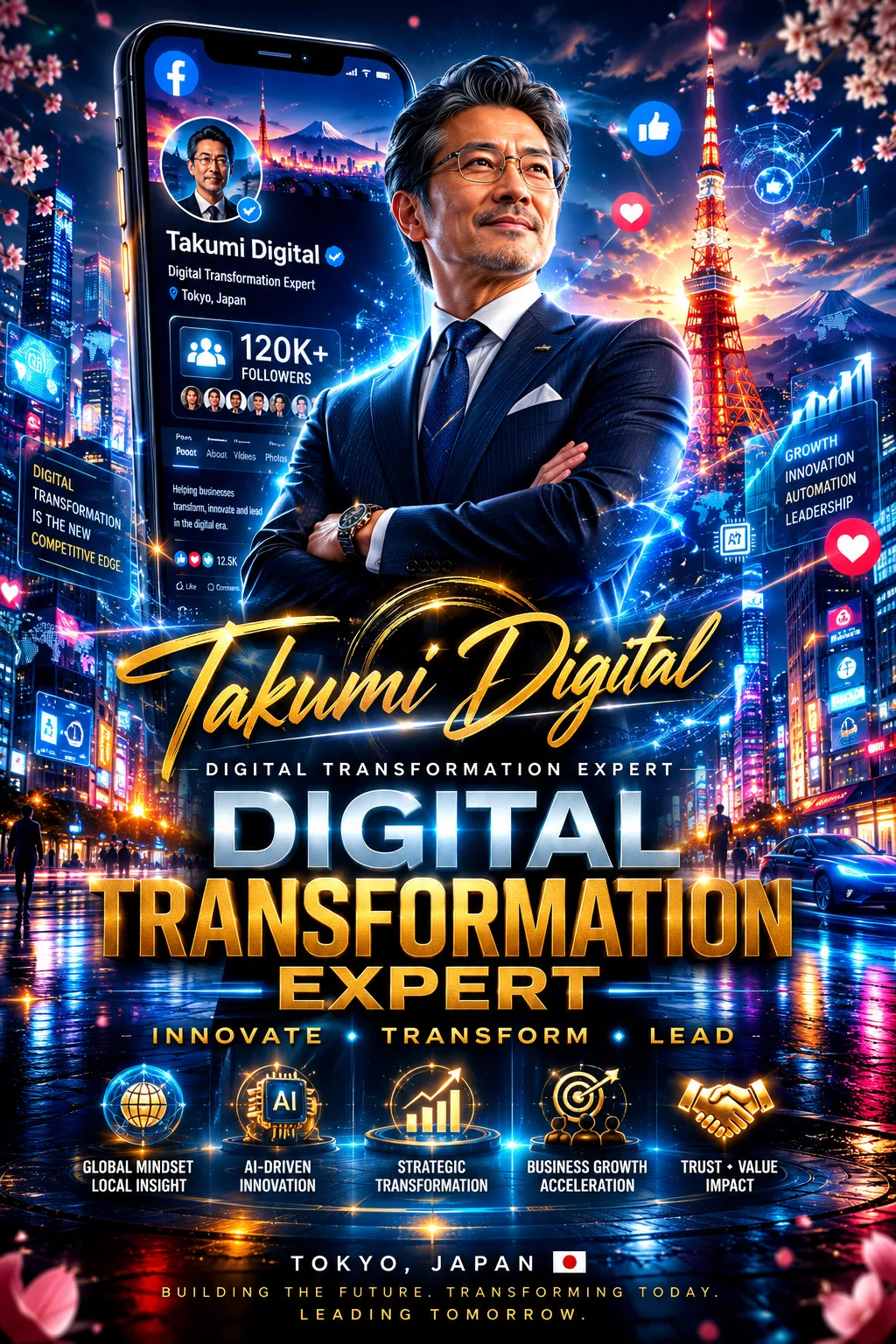
Personal Brand PR Poster 01
Personal Brand PR Poster 02
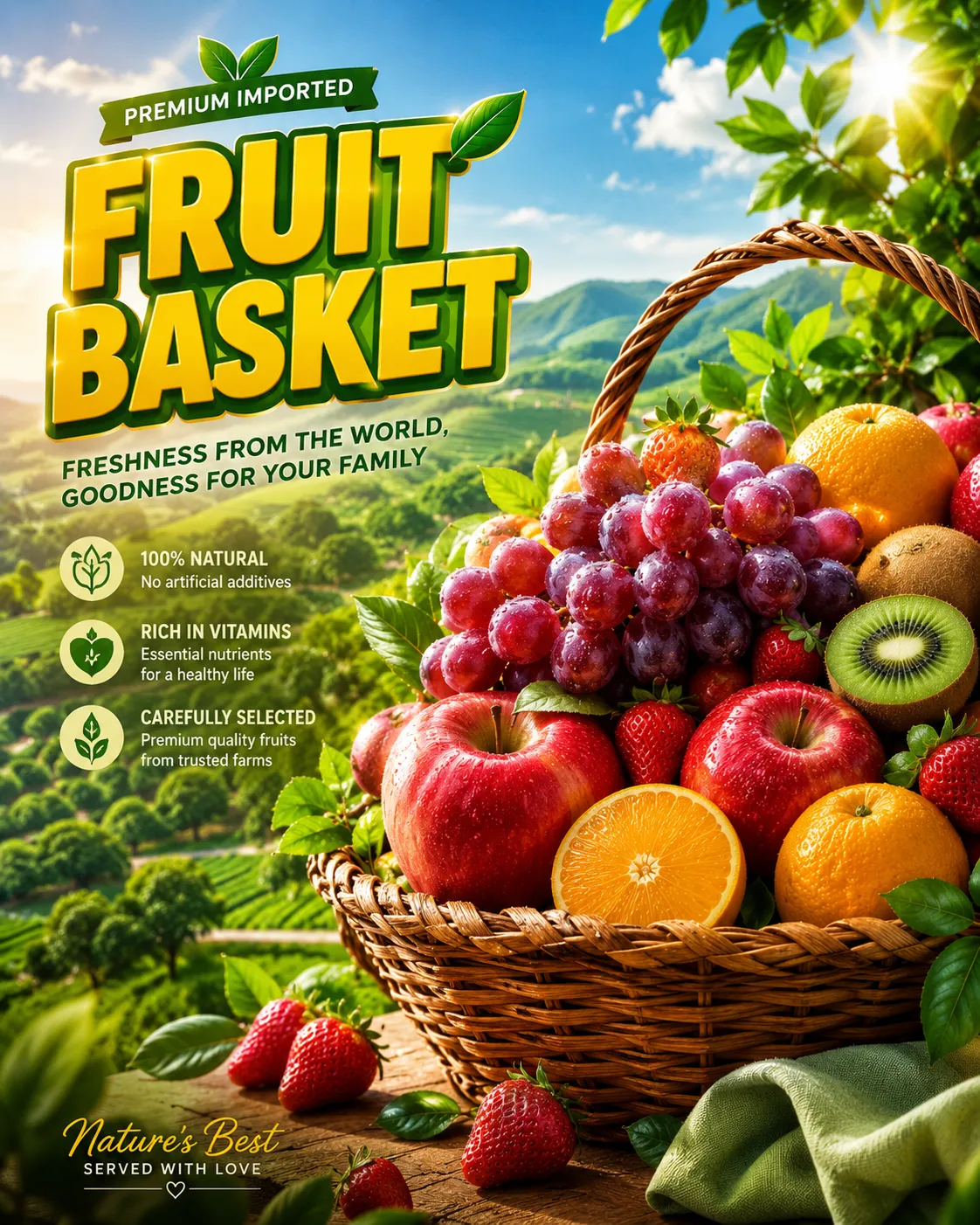
Premium Imported Fresh Fruits Advertising Poster
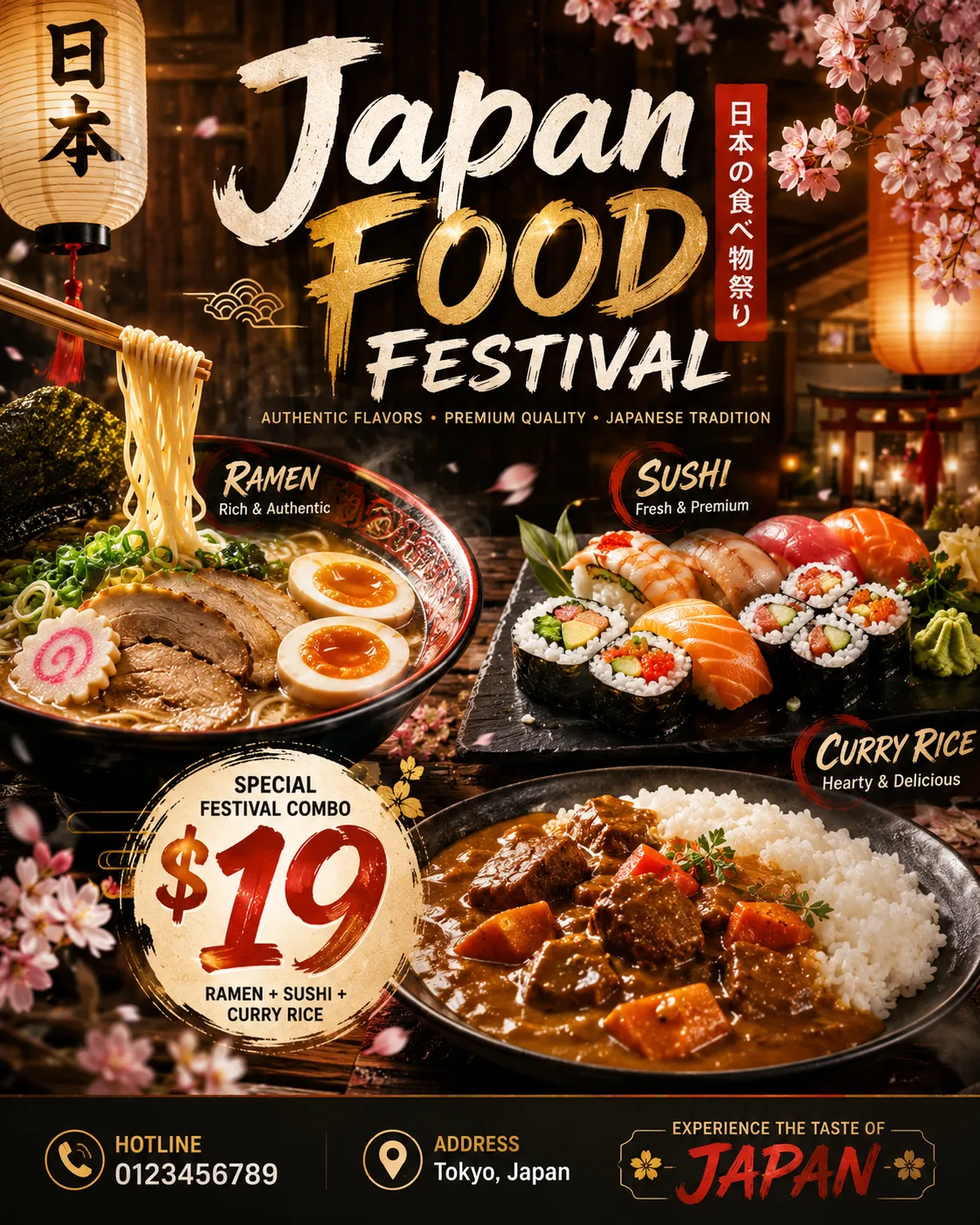
Japanese Food Festival Promotional Poster
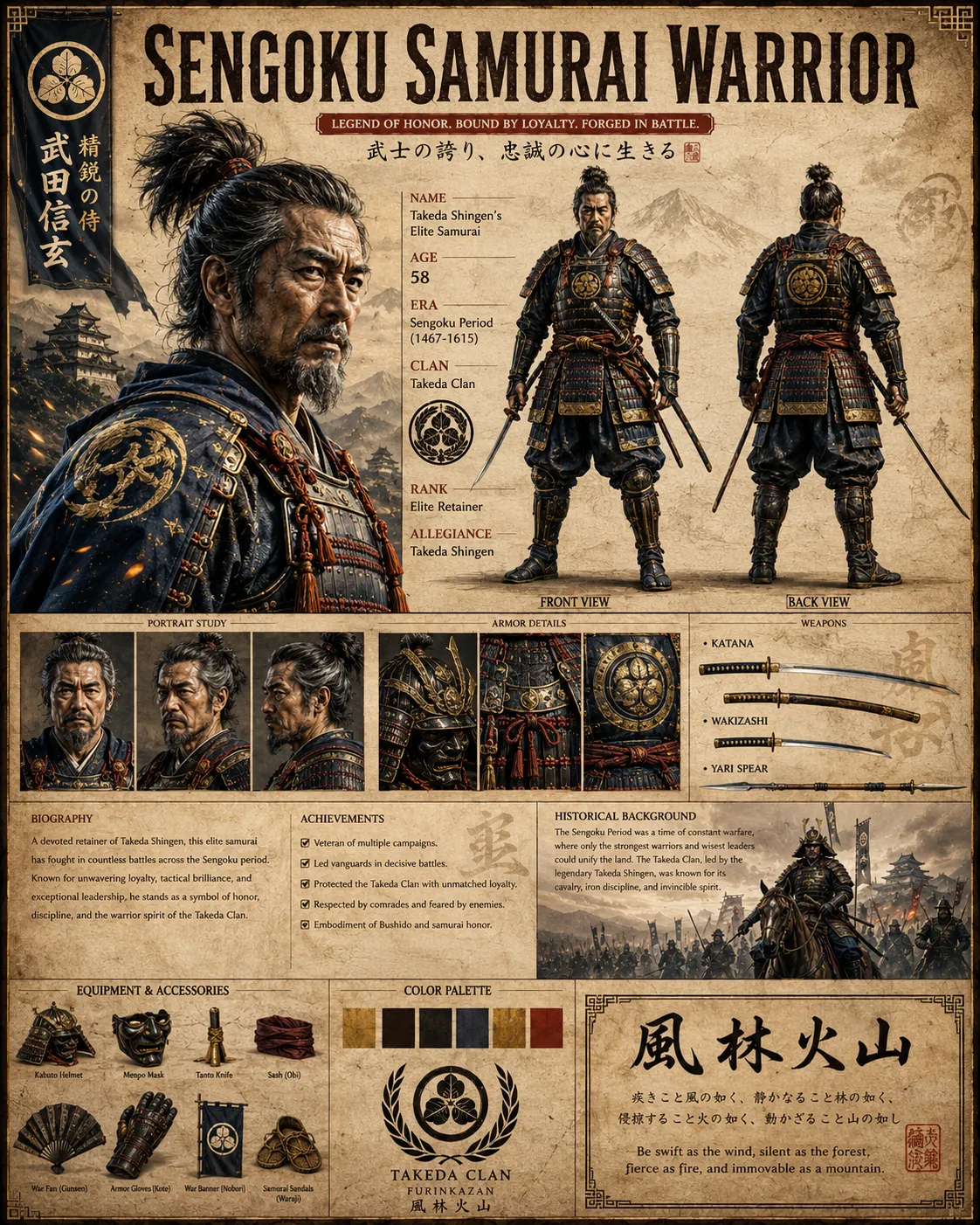
Legendary Japanese Samurai Character Sheet
*For any questions, please contact us via Email: soloBizOSAgent@gmail.com Or support@soloBizOS.com Or Contact us via Form CONTACT for a prompt response.