





Description
1. How to show list of quotations in soloBizOS.Com?
To do it, you click on CRM (1) menu => then you click on Quote (2) sub-menu like Illustration 1 bellows.
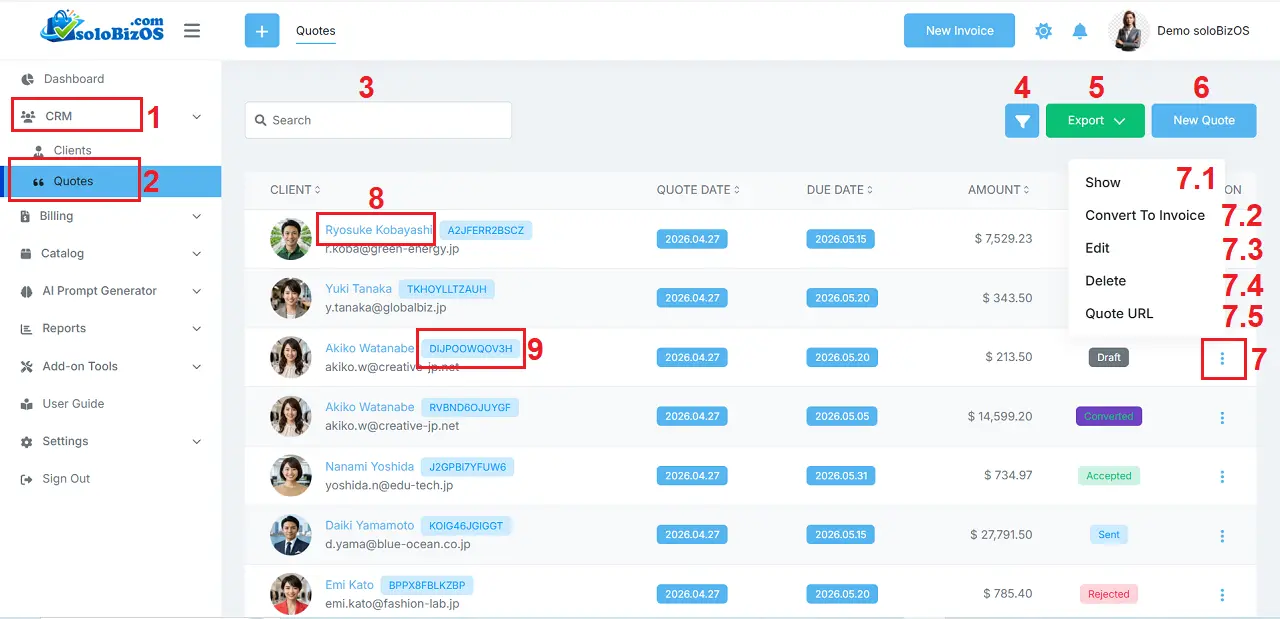
Illustration 1: List of Quotations in soloBizOS.Com
* Notes:+ Filter icon (4): It's used to filter data about your quotes.
+ Export button (5): It's used to export list of quotations that's showed in table bellows.
+ New Quote (6) button: It's used to create a new Quote.
+ Action icon (7): Click on this icon to show options from 7.1 to 7.5:
- Show option (7.1): Click on this option to show your Quote's detail.
- Convert to Invoice (7.2): click on this option to convert that quote to invoice.
- Edit (7.3): You click on this option to modify your Quote.
- Delete (7.4): You click on this option to Delete your Quote.
- Quote URL (7.5): Click on this option to Get the URL of your Quote to share it for your Clients.
+ 8th red box: Click on this option to show your client's details.
+ 9th red box: Click on this Option to show your client's quote. It likes 7.1 option.
2. How to change status of quotations in soloBizOS.Com?
In Illustration 1 above, you click on Show Option (7.1) or 9th red box that's suitable with your quote which you want to change its status => then you click on Buttons in Change Quote Status Area (10) like Illustration 2 bellows.
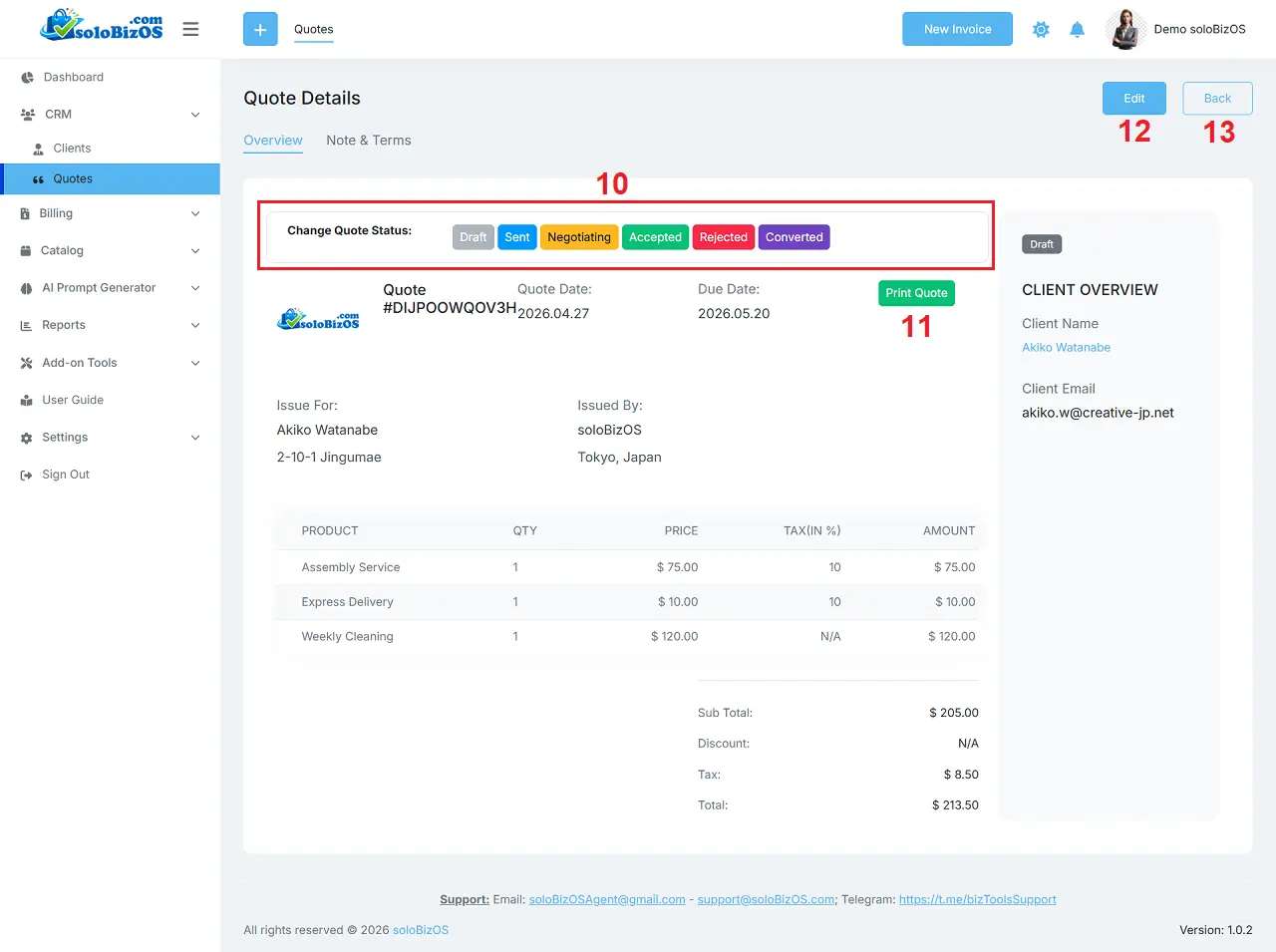
Illustration 2: Change status of quote
* Notes:+ Changing the status of a Quote will help you track and monitor the Quote's status, and from there you can take corresponding actions to convert the Quote into an Invoice and close the Sale.
+ Print Quote (11): You click on this button to print this quote.
*For any questions, please contact us via Email: soloBizOSAgent@gmail.com Or support@soloBizOS.com Or Contact us via Form CONTACT for a prompt response.