



Description
There are some methods to payment for invoices in soloBizOS.Com, It includes:
1. Payments can be made from the Admin interface
The admin here refers to self-employed business owners, CEOs, startups, freelancers, etc.
In this case, the Admin will create payment transactions for the Customer's invoices, and the Customer only needs to pay the corresponding amount for their invoice.
To do it, Admin need login into soloBizOS.Com with his account => Then admin click on Billing (1) menu => then click on Payments (2) sub-menu like Illustration 1 bellows.
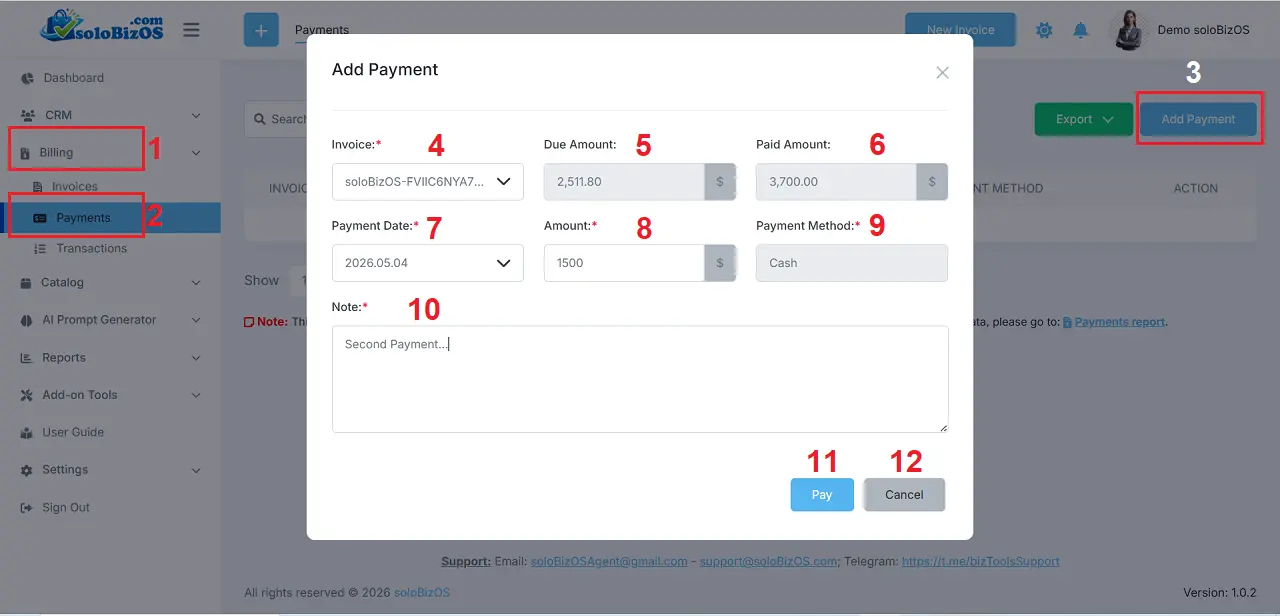
Illustration 1: Admin process payment for his client from his interface
* Notes:+ Invoice (4): You choose the invoice that you want to pay for your clients.
+ Amount (8): You need input the money that is Less than or equal to the Due Amount (5).
2. Customers pay directly from the invoice link sent by the Admin
Admin creates an invoice link from the invoice list => Then, Admin sends the invoice link to the customer => The customer pays directly from the invoice link by clicking the Make Payment (13) button and following the subsequent payment steps as instructed on that invoice.
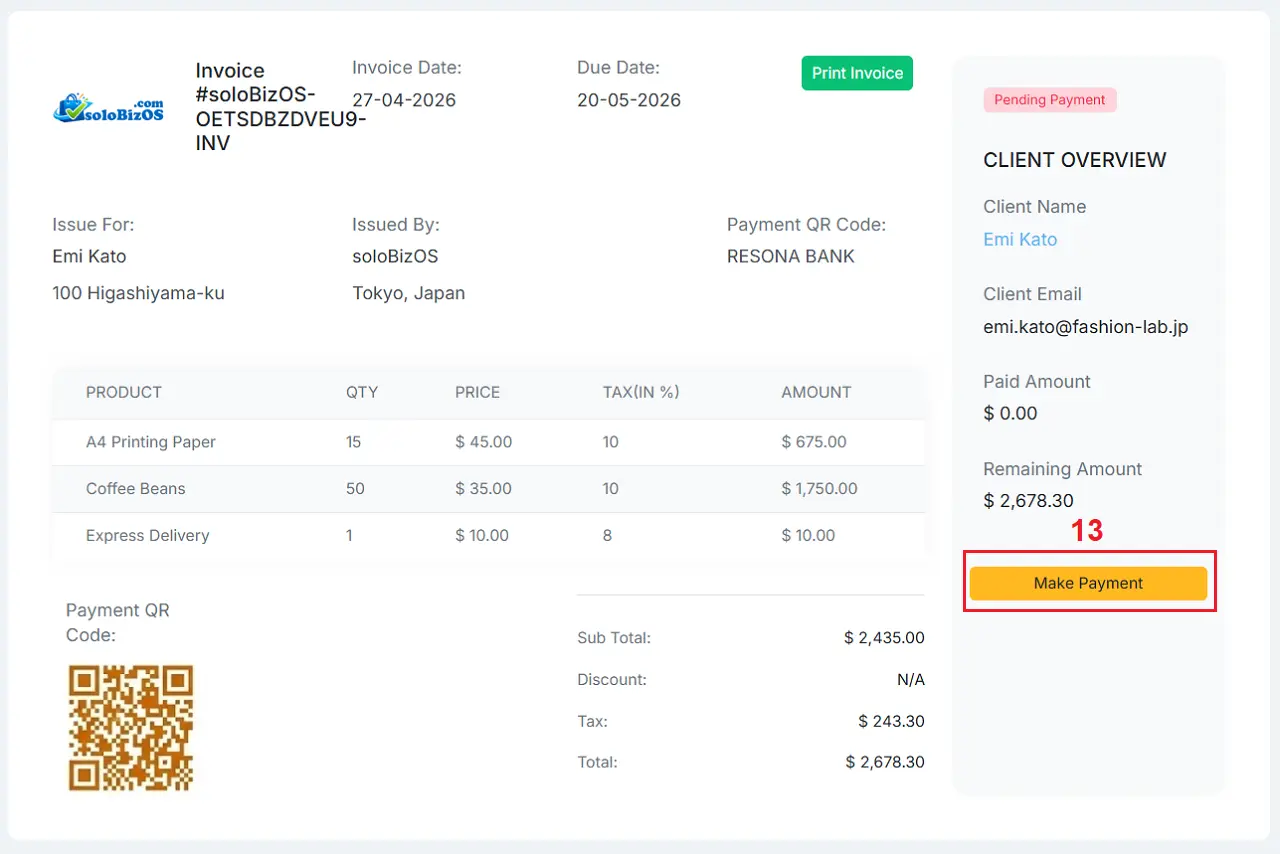
Illustration 2: Customers pay directly from the invoice link (step 1)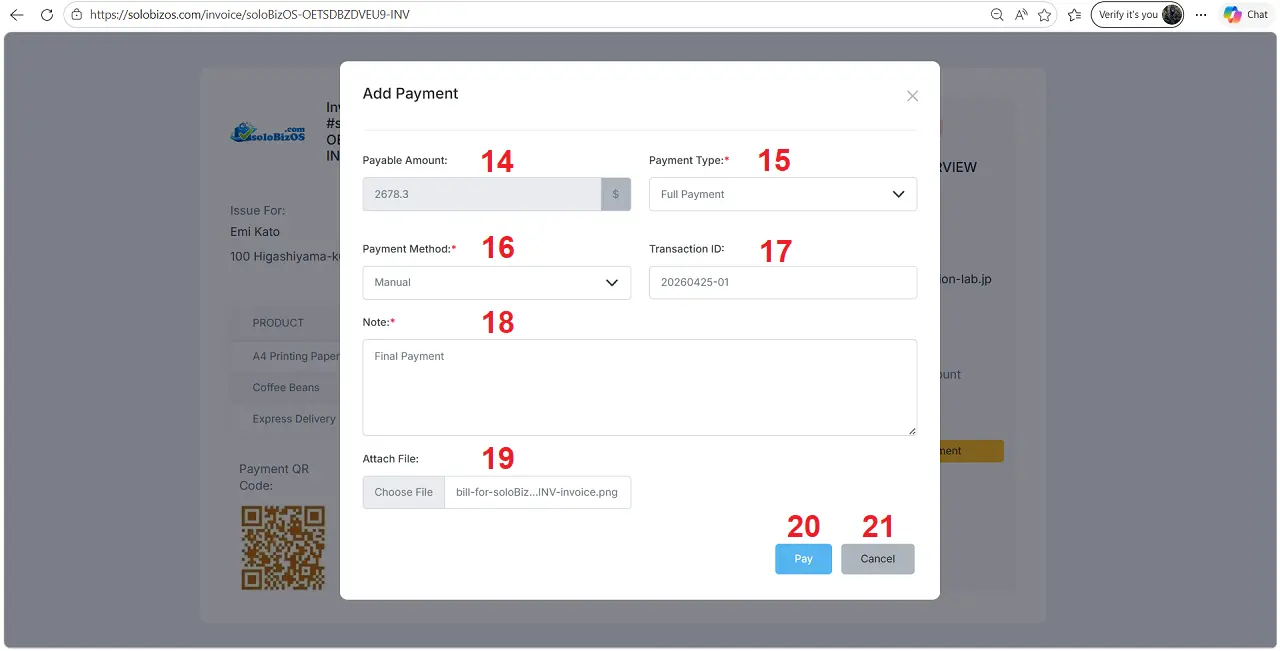
Illustration 3: Customers pay directly from the invoice link (step 2)
3. Customers pay their bills from the Customer's admin interface
In this case, the customer needs to log in to their admin interface using the account information that the Admin sent to them.
Next, the customer clicks on the Invoices menu => In the list of Invoices that appears, the customer clicks on the Currency icon corresponding to the invoice to be paid in the Action column => Then, the customer proceeds to enter the data and complete the payment for that invoice.
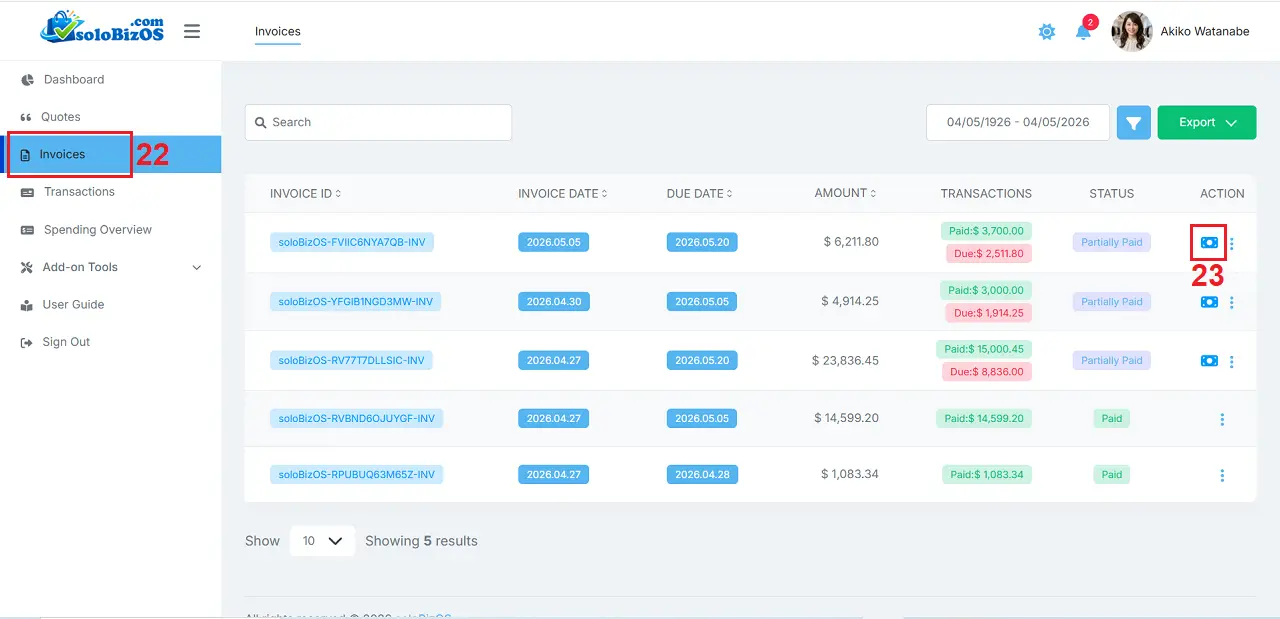
Illustration 4: Customers pay their invoices from the customer administration interface - step 1
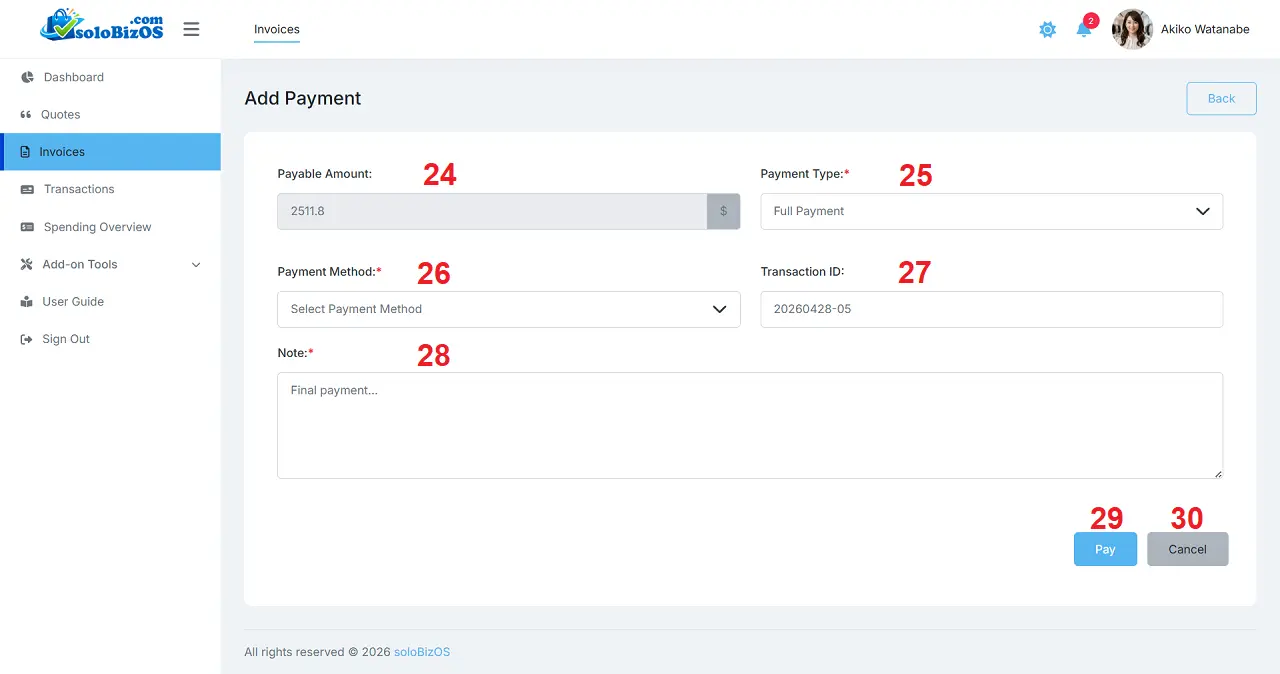
Illustration 5: Customers pay their invoices from the customer administration interface - step 2
4. Notes
+ The payment list (like Illustration 1 above) only displays payment transactions from the current month.
+ To view a detailed list of payments, click on the Reports menu => Then you click on Payments Report sub-menu.
+ You can also track your payment transaction history by clicking on the Billing menu => then you click on Transactions sub-menu like Illustration 1 above.
*For any questions, please contact us via Email: soloBizOSAgent@gmail.com Or support@soloBizOS.com Or Contact us via Form CONTACT for a prompt response.