




Description
USER GUIDE: SOLOBIZOS.COM
I. SETUP
1.1. Creating a Member Account
+ This section guides you through creating a free member account to apply soloBizOS to your business operations.
+ Instructions for Logging In and Logging Out of soloBizOS. 👉 Click here to see more...
1.2. Updating Profile Information
How to edit member information, change login passwords, and switch the system language?
💡 Tips: To do this, You need login into soloBizOS.Com. Next you need click on the Avatar icon in the top right corner => Select Account Settings, Change Password, or Change Language.
1.3. Business Information Configuration
This section helps you set up business details, functional currency, tax declarations, bank accounts for payments, invoicing information, SMTP mail server settings, and system automated notifications.
💡 Tips: To do this, You need click on Settings menu => click on Settings sub-menu or Taxs sub-menu or Invoice Templates sub-menu or QR Code Payment sub-menu.
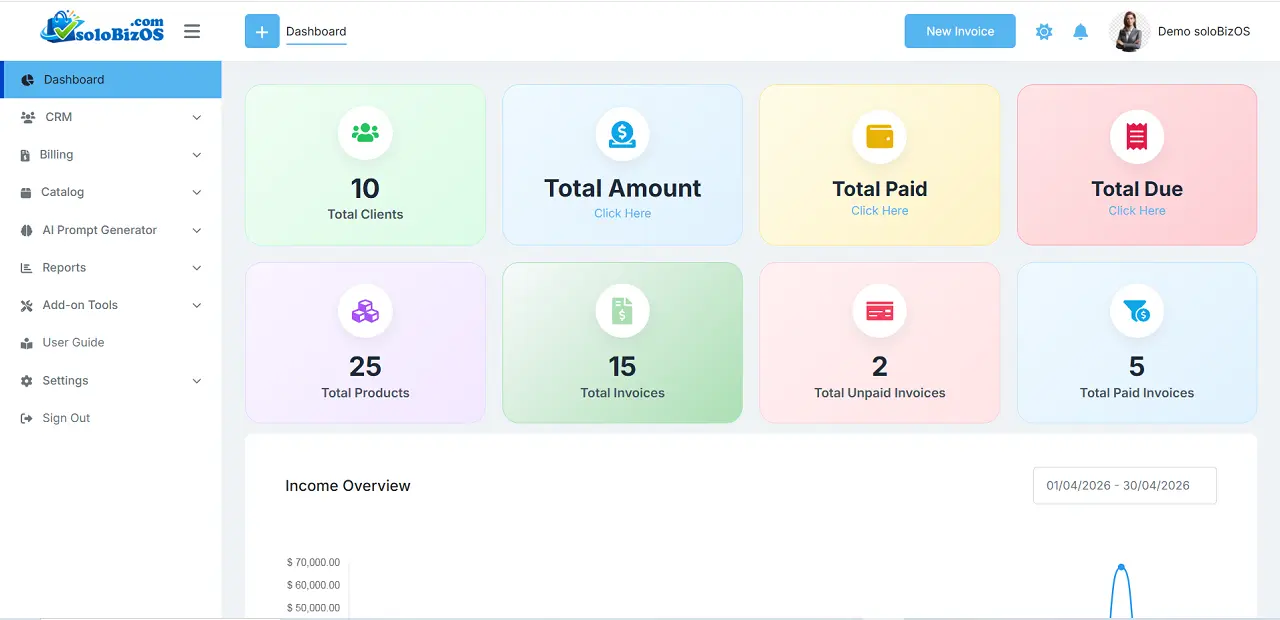
Dashboard Interface Of solopreneurs in soloBizOS.Com
II. PRODUCT MANAGEMENT
2.1. Category Management
Guidance on Creating, Editing, and Deleting product categories.
💡 Tips: To do this, You need click on Catalog menu => click on Categories sub-menu.
2.2. Product & Service Management
Instructions for Creating, Editing, and Deleting individual Products or Services.
💡 Tips: To do this, You need click on Catalog menu => click on Products sub-menu.
III. CUSTOMER RELATIONSHIP MANAGEMENT (CRM)
3.1. Customer Management
+ How to Create, Edit, and Delete customers?
+ Instructions on contacting customers via integrated channels such as Viber, Call, WhatsApp, etc.
💡 Tips: To do this, You need click on CRM menu => click on Clients sub-menu.
3.2. Quotation Management
+ How to Create, Edit, and Delete Quotations?
+ Manage quotation status transitions, generate quotation links to send to customers, and convert Quotations into Invoices.
💡 Tips: To do this, You need click on CRM menu => click on Quotes sub-menu.
IV. FINANCIAL MANAGEMENT
4.1. Invoice Management
+ Instructions for Creating, Editing, and Deleting Invoices.
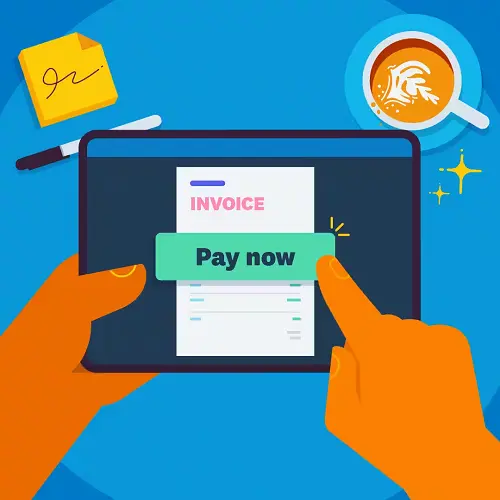
+ Features include generating invoice links, automated email delivery, enabling direct online payments, and converting standard Invoices into Recurring Invoices.
💡 Tips: To do this, You need click on Billing menu => click on Invoices sub-menu.
4.2. Payment Management
Manage customer payments by Creating, Editing, or Deleting transactions and tracking the overall payment history.
💡 Tips: To do this, You need click on Billing menu => click on Payments sub-menu.
V. AI PROMPT GENERATOR
5.1. Task-Oriented Prompt Generation
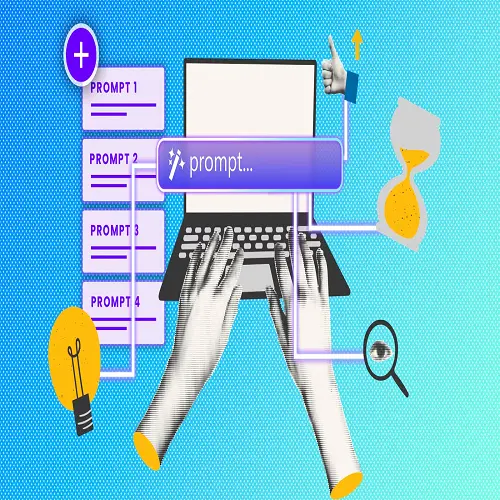
Easily generate a Prompt to command AI to perform any business task, such as: Business planning, Marketing strategy, Market analysis, Competitor analysis, and SEO-standard content writing.
💡 Tips: To do this, You need click on AI Prompt Generator menu => click on Task Prompt sub-menu. 👉 Click here to see more...
5.2. Thumbnail Image Prompt Generation
Generate a Prompt to direct AI to create Thumbnail images in any size, style, or visual concept of your choice.
💡 Tips: To do this, You need click on AI Prompt Generator menu => click on Thumbnail Image Prompt sub-menu. 👉 Click here to see more...
5.3. Social Media Seeding Prompt Generation
Generate a Prompt to command AI to create optimized seeding content for specific social media platforms, with customizable writing styles, creativity levels, length, and languages.
💡 Tips: To do this, You need click on AI Prompt Generator menu => click on Social Seeding Prompt sub-menu. 👉 Click here to see more...
5.4. Poster Prompt Generation
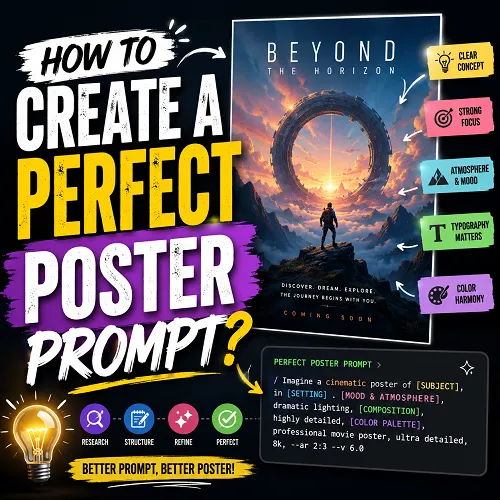
Advanced AI Prompt System for Posters, Ads Creative, Thumbnails, Branding Campaigns, Cinematic Visuals, Infographics, and Conversion Marketing.
💡 Tips: To do this, You need click on AI Prompt Generator menu => click on Poster Prompt sub-menu. 👉 Click here to see more...
5.5. InfoGraphic Prompt Generation
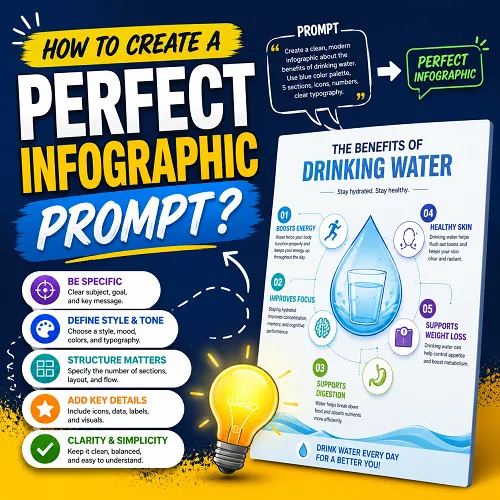
Create Professional AI Infographic Prompts for Midjourney, DALL·E, and Canva AI.
💡 Tips: To do this, You need click on AI Prompt Generator menu => click on InfoGraphic Prompt sub-menu. 👉 Click here to see more...
5.6. Video Prompt Generation
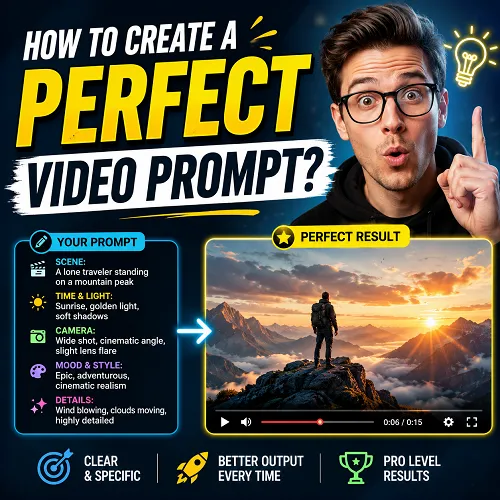
An advanced AI Video Prompt tool that helps you generate high-quality cinematic prompts for Kling, Runway, Pika, Sora, Veo, PixVerse, and more in just seconds.
💡 Tips: To do this, You need click on AI Prompt Generator menu => click on Video Prompt sub-menu. 👉 Click here to see more...
VI. REPORTS & ANALYTICS
6.1. Revenue Overview Report
6.2. Best-Selling Products Report
6.3. Unsold Products Report
6.4. Top Customers by Revenue
6.5. Inactive Customer Statistics (No orders placed)
6.6. Quotation-Generating Customer Statistics
6.7. Invoice-Generating Customer Statistics
6.8. Payment Transaction History Report
💡 Tips: To do this, You need click on Reports menu => click on the suitable sub-menu.
VII. SUPPORTING TOOLS
A collection of supplementary tools to boost your business:
- Google Maps & Social Media Lead Scraper.
- Automated SEO Content Writer.
- Digital Business Card Creator.
- SEO Optimization Toolkit.
- PDF Conversion Suite.
- Daily Productivity & Utility Tools.
💡 Tips: To do this, You need click on Add-on Tools menu => click on the suitable sub-menu.
VIII. SUPPORT & FAQ
For any inquiries regarding soloBizOS, please contact us at:
- Email: soloBizOSAgent@gmail.com or support@soloBizOS.com
- Telegram: https://t.me/bizToolsSupport
*For any questions, please contact us via Email: soloBizOSAgent@gmail.com Or support@soloBizOS.com Or Contact us via Form CONTACT for a prompt response.