




Description
I. HOW TO SETUP THE SETTINGS FOR YOUR BUSINESS IN SOLOBIZOS.COM?
1.1. How to setup the general things for your business in soloBizOS.Com?
To do it, you click on Settings (1) menu => click on Settings(2) sub-menu => Click on General (3) Tab => Then you input or select the suitable values for all boxs in the general form => Final, you click on Save button to finish.
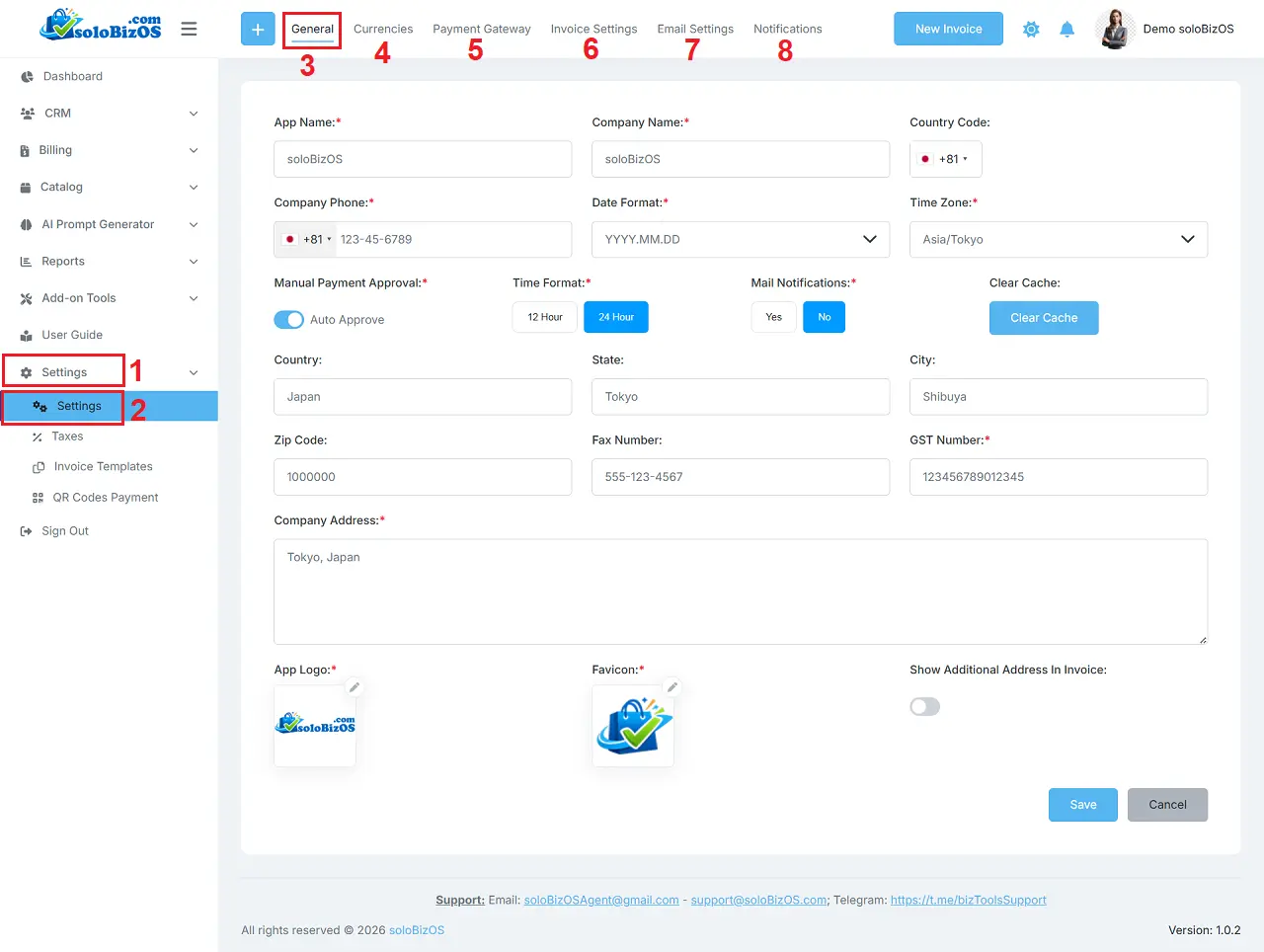
Illustration 1: General Settings For Your Business In soloBizOS.Com
1.2. How to setup the currency for your business in soloBizOS.Com?
In Illustration 1 above, you click on Currencies (4) tab to do it.
1.3. How to setup the payment gateways for your business in soloBizOS.Com?
In Illustration 1 above, you click on Payment Gateway (5) tab to do it.
1.4. How to setup the invoice settings for your business in soloBizOS.Com?
In Illustration 1 above, you click on Invoice Settings (6) tab to do it.
1.5. How to setup the email settings for your business in soloBizOS.Com?
In Illustration 1 above, you click on Email Settings (7) tab to do it.
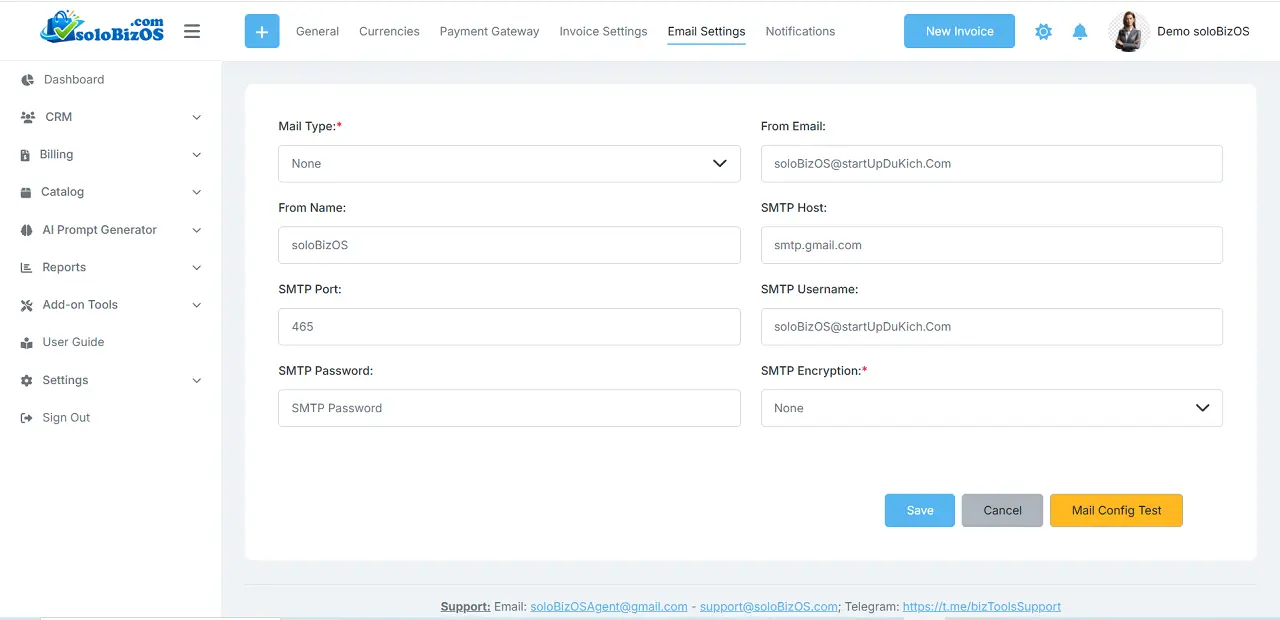
Illustration 2: Email Settings For Your Business In soloBizOS.Com
* Notes:
+ SMTP Password: If you use Gmail, enter your Gmail account's application password in this field.
+ Mail Config Test: After you click on SAVE button, you need click on this button. If its result is ok so your config's right. Opposite, you need check your mail config and try it again.
1.6. How to setup the Notifications settings for your business in soloBizOS.Com?
In Illustration 1 above, you click on Notifications (8) tab to do it.
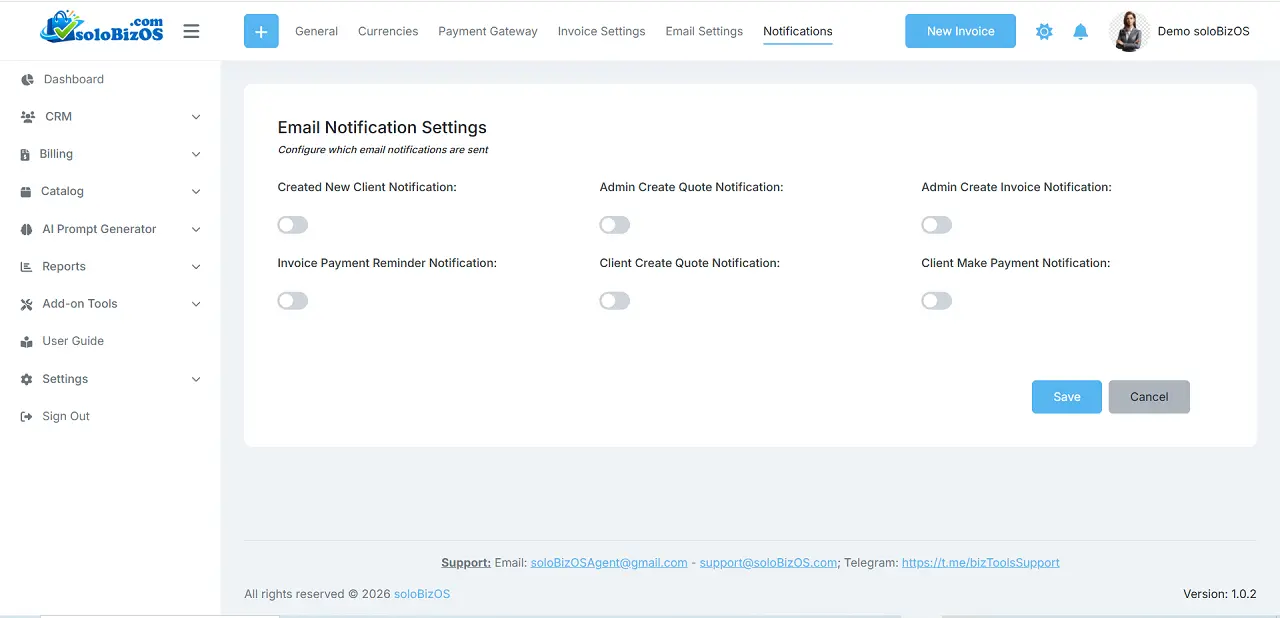
Illustration 3: Notifications Settings
II. HOW TO SETUP THE TAXS FOR YOUR BUSINESS IN SOLOBIZOS.COM?
To do it, you click on Settings (1) menu => click on Tax (2) sub-menu.
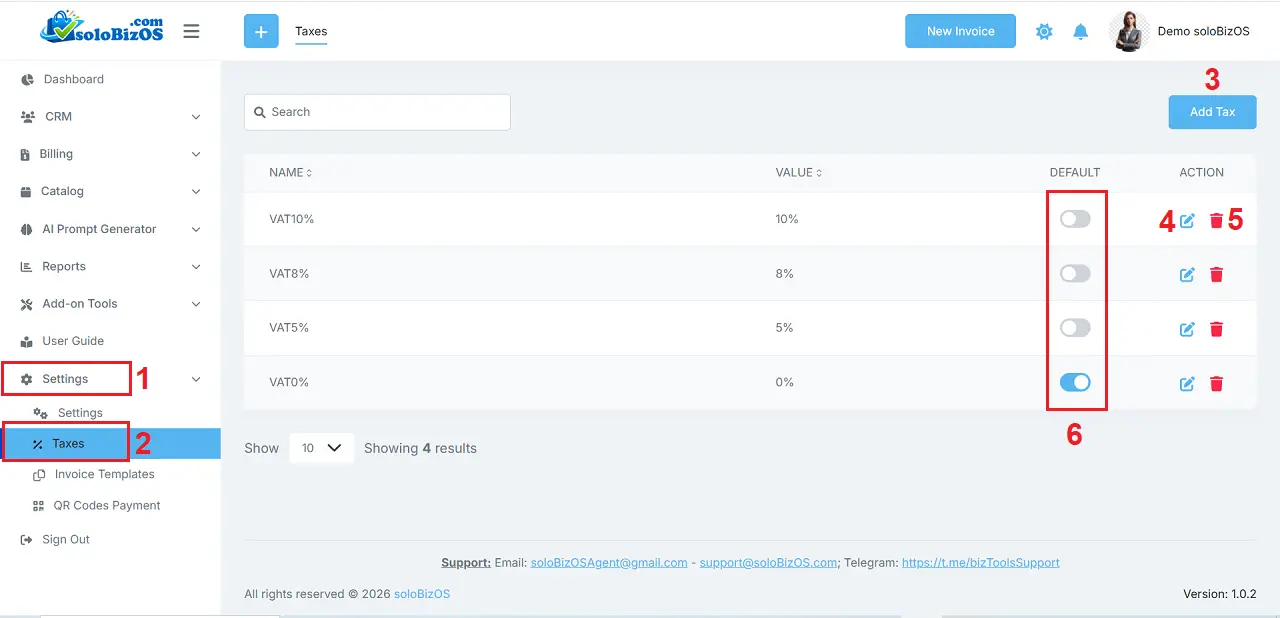
Illustration 4: Taxs Settings
* Notes:
+ Add Tax (3): Click on this button to create the new tax for your business.
+ Pencil icon (4): Click on this icon to edit your tax.
+ Trash icon (5): Click on this icon to delete your tax.
III. HOW TO SETUP THE INVOICE TEMPLATES FOR YOUR BUSINESS IN SOLOBIZOS.COM?
To do it, you click on Settings (1) menu => click on Invoice Template (2) sub-menu.
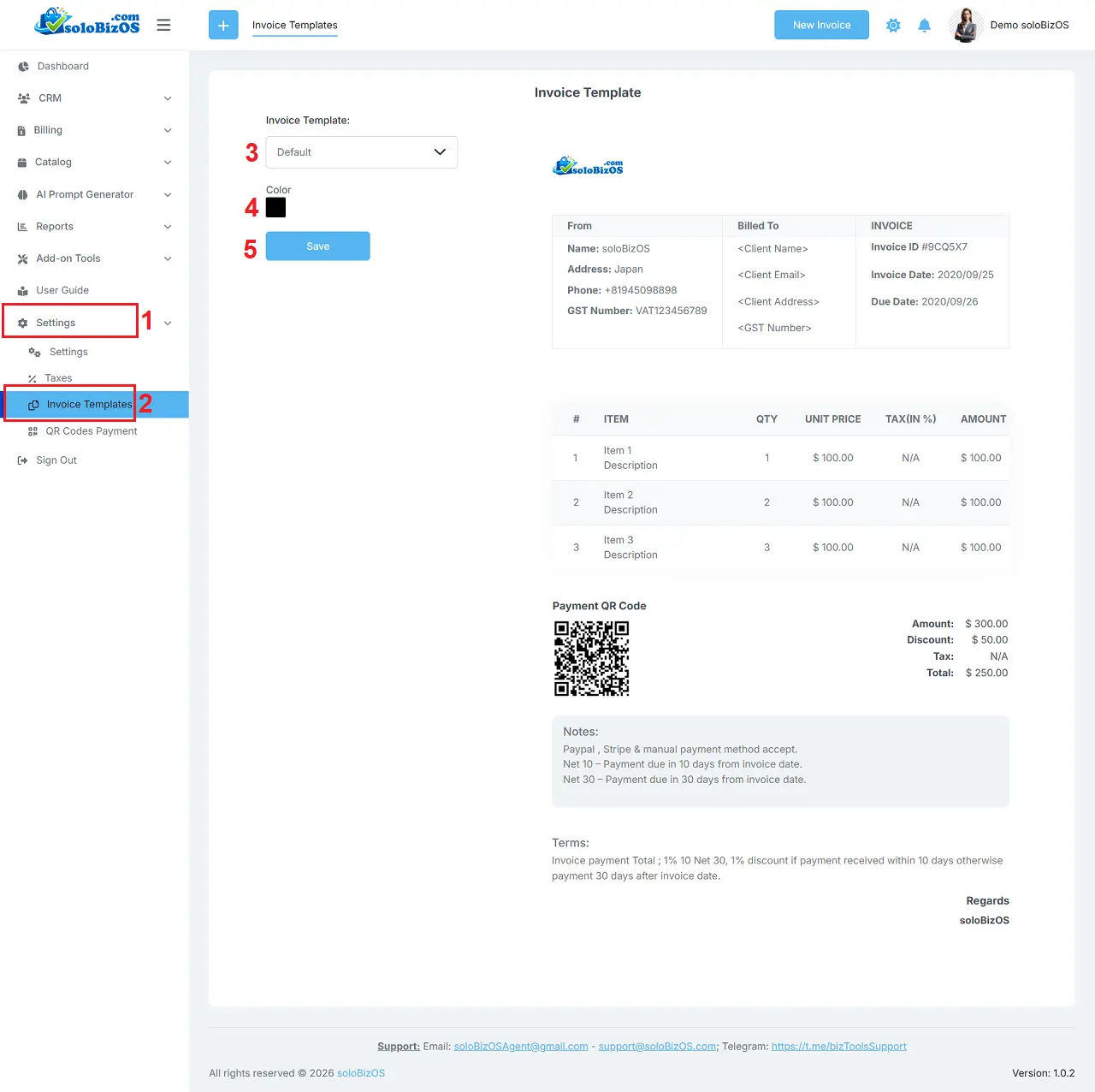
Illustration 5: Invoice Templates Settings
IV. HOW TO SETUP THE QR CODE PAYMENTS FOR YOUR BUSINESS IN SOLOBIZOS.COM?
To do it, you click on Settings (1) menu => click on Invoice QR Code Payment (2) sub-menu.
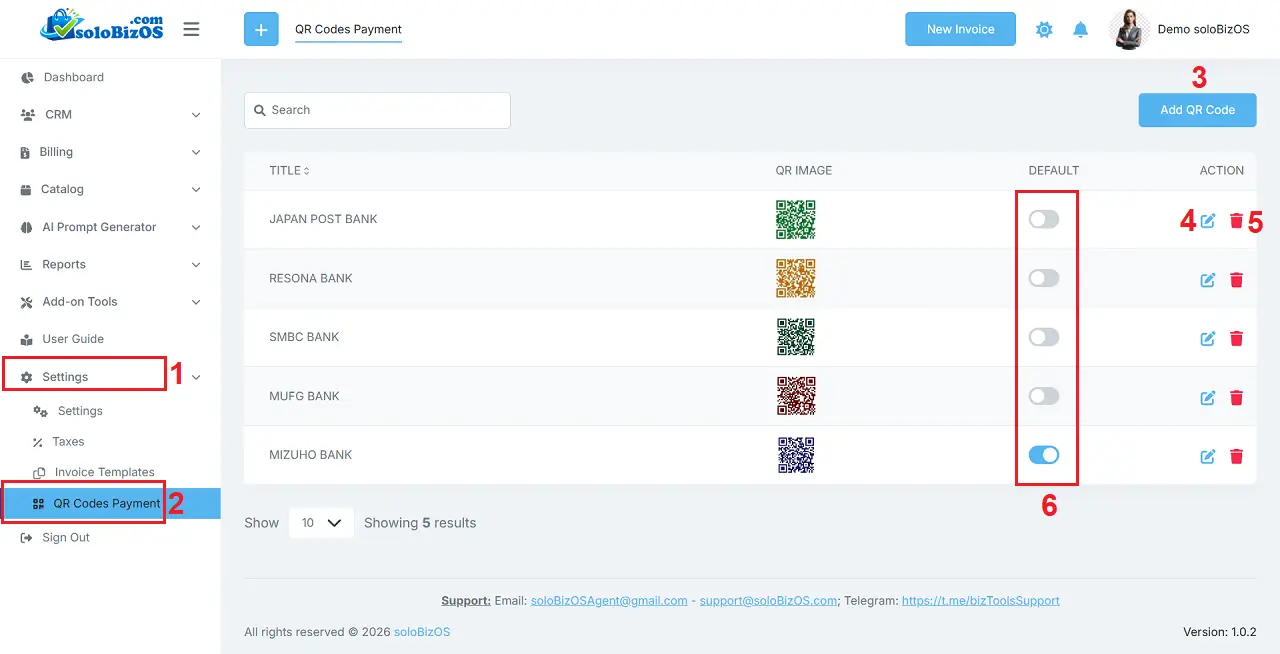
Illustration 6: QR Code Payment Settings
* Notes:
+ Add QR Code (3): Click on this button to create the new QR Code Payment for your business.
+ Pencil icon (4): Click on this icon to edit your QR Code Payment.
+ Trash icon (5): Click on this icon to delete your QR Code Payment.
*For any questions, please contact us via Email: soloBizOSAgent@gmail.com Or support@soloBizOS.com Or Contact us via Form CONTACT for a prompt response.